![Neeve-Logo-Lockup-SM_rectangle_reverse .png]](https://support.neeve.ai/hs-fs/hubfs/Neeve-Logo-Lockup-SM_rectangle_reverse%20.png?height=40&name=Neeve-Logo-Lockup-SM_rectangle_reverse%20.png)
1. INCIDENT DIAGNOSTICS & ROOT CAUSE
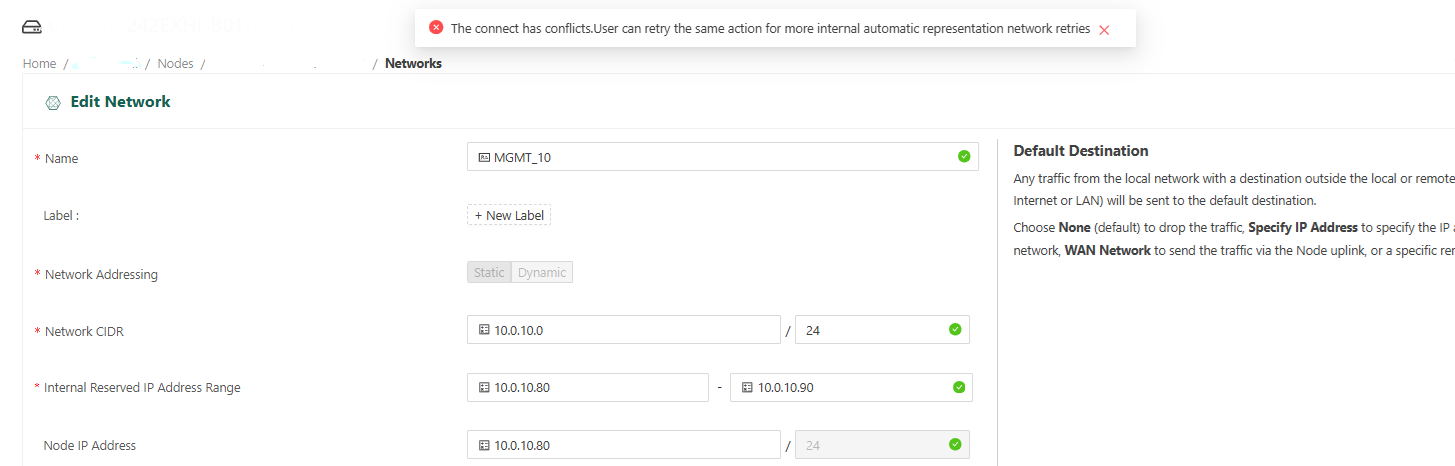
When configuring a network connection on an iNode, the platform displays the following system banner:"The connect has conflicts. User can retry the same action for more internal automatic representation network retries"
Technical Root Cause
This error triggers when the local subnet (TAN Network) and the Remote Network’s Private IP space occupy overlapping IP address blocks. Because both networks share identical or intersecting address spaces, deterministic overlay routing fails without explicit local network address translation.- Example Scenario:
- Local TAN Network:
10.0.10.0/24 - Remote Network Private Range:
10.0.11.66/23 - Conflict Analysis:
10.0.11.66falls directly inside the10.0.10.0/24local subnet boundary.
- Local TAN Network:
2. PREREQUISITES
- Administrative credentials for the Neeve Secure Edge Portal (
<Orgname>.secureedge.neeve.ai). - An unallocated, non-conflicting virtual/private subnet block designated for local address representation (e.g.,
2.3.4.0/23).
3. STEP-BY-STEP REMEDIATION
Step 1: Navigate to Node Network Configuration
- Log into the Secure Edge Portal.
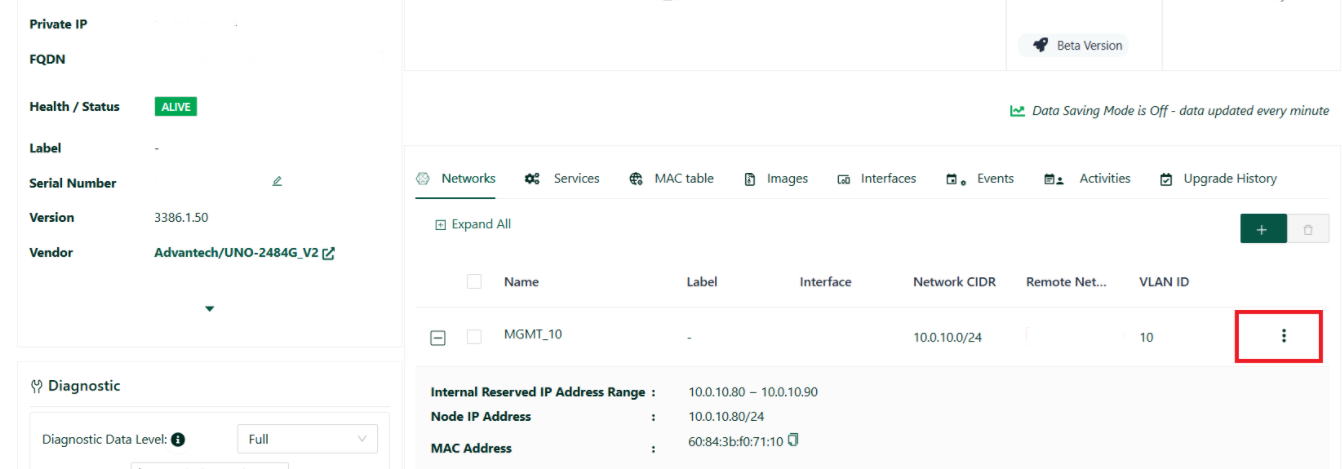
- Navigate to Orgs > [Target Organization] > Nodes > [Target iNode] > Networks.
- Locate the target local network (e.g.,
MGMT_10) and click on the Three Dot icon and select Edit Network.
Step 2: Configure Non-Overlapping Representation Subnet
- Scroll down to the Remote Networks configuration pane below TAN information of the page.
- Locate the failing remote network mapping.
- In the field labeled Represent Remote Network Locally as, enter the designated non-overlapping CIDR block (e.g.,
2.3.4.0/23).
| Parameter | Configuration Value | Verification |
| Remote Network Target | Select target Remote Network | Destination selected |
| Represent Remote Network Locally as | Enter unique CIDR (e.g., 2.3.4.0/23) |
Valid, non-overlapping IP block |
Step 3: Commit Changes and Validate
- Click Save to apply the configuration.
- Wait 60–120 seconds for the orchestrator to synchronize routing policies down to the iNode.
- Refresh the page and confirm the Connection Status changes from
NOT AVAILABLEtoCONNECTED(highlighted in green).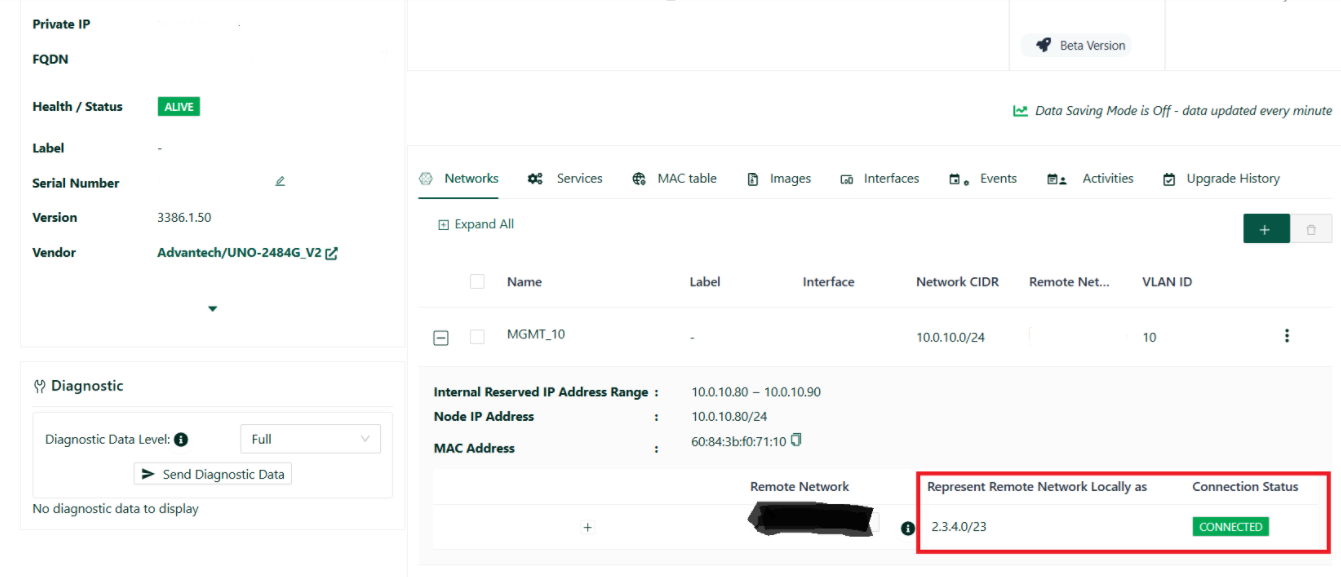
5. SUCCESS VERIFICATION
- Portal Status: The Remote Networks table displays
CONNECTEDstatus. - Routing Table: The local iNode successfully routes outbound traffic to the mapped subnet without triggering IP conflict banners.