![Neeve-Logo-Lockup-SM_rectangle_reverse .png]](https://support.neeve.ai/hs-fs/hubfs/Neeve-Logo-Lockup-SM_rectangle_reverse%20.png?height=40&name=Neeve-Logo-Lockup-SM_rectangle_reverse%20.png)
Root Cause Analysis
Web management consoles, internal applications, and embedded web servers often enforce strict HTTP host header validation and security policies over HTTPS. When proxied through an external gateway or remote access portal:
- Host Header Mismatch: The target web server receives an external domain name (e.g.,
*.remoteaccess.domain.ai) in the incoming HTTPHostheader. Because this domain does not match the server’s expected internal IP address or domain, the target server rejects the request with anHTTP 400 Bad Requestor drops the connection socket.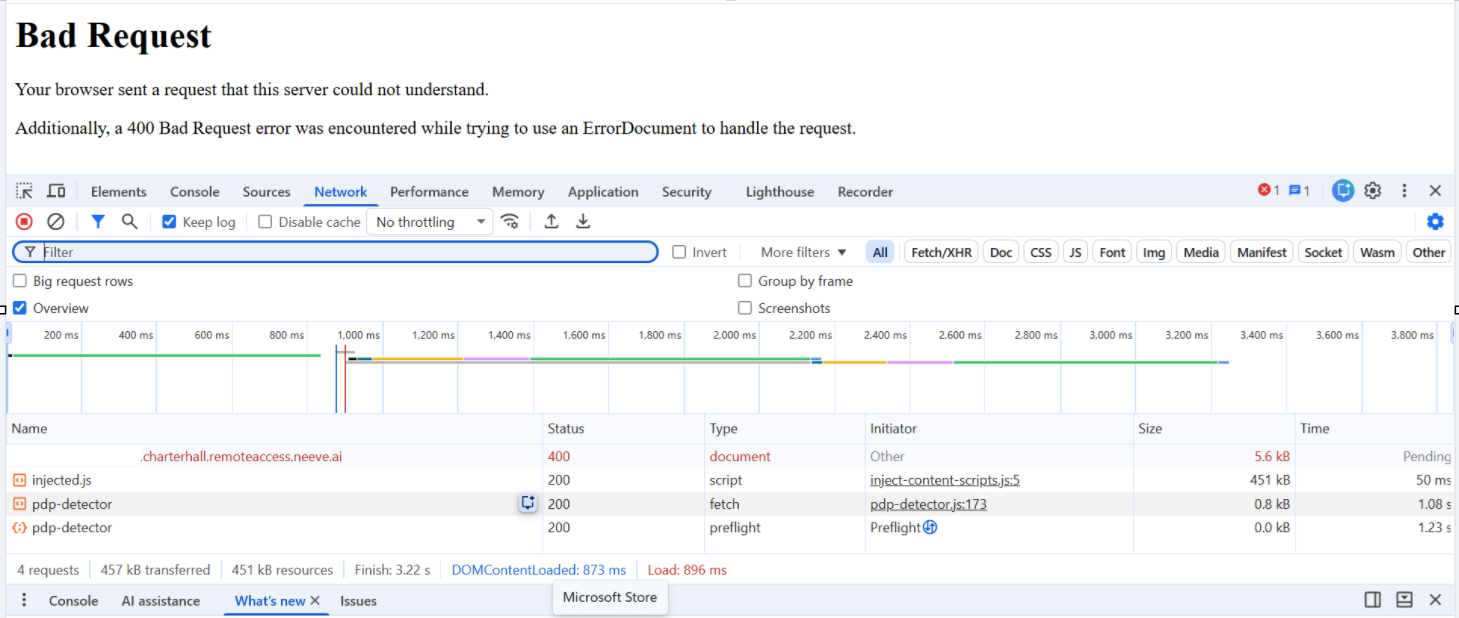
Prerequisites & Requirements
- Administrative access to the Remote Access Portal or Reverse Proxy Gateway.
- Internal IP address or internal FQDN of the HTTPS target destination device/service.
- Access to client-side Developer Tools (Google Chrome / Edge) for network tracing.
Step-by-Step Resolution Procedure
Step 1: Configure Target Connection Protocols & Ports
- Log in to the Remote Access Portal.
- Navigate to Device Endpoints / Services and select the affected target connection profile.
- Edit the connection configuration:
- Protocol: Ensure the protocol is explicitly set to HTTPS.
- Target Port: Set the explicit listening port to 443 (or the target's custom HTTPS port).
Step 2: Configure Header Rewrite Rules (Resolves 400 Bad Request)
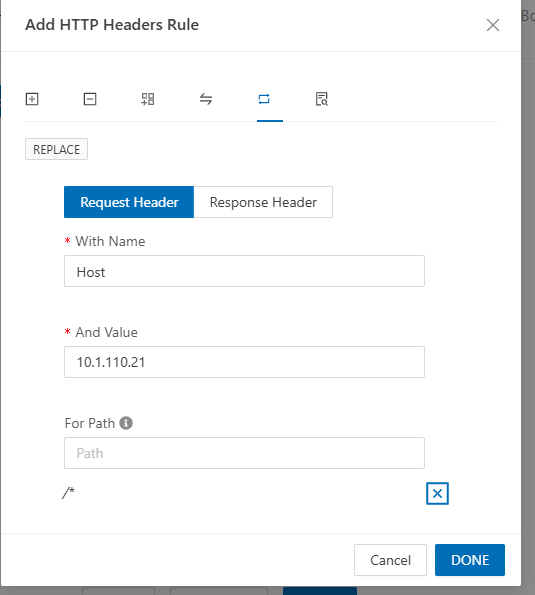
When the target server rejects the proxy domain name, configure a header rewrite rule to substitute the external host header with the internal target address:
- Locate the device profile (e.g.,
2CS-IBP_BMS_VMat10.1.31.250). - Scroll down to the Actions section at the bottom and click the blue Modify Connections icon.
- In the connection configuration screen, locate the lower-left section.
- Click the
Advanced (BETA)link. - A confirmation dialog will pop up stating: "Switch to Advanced Settings for this connection? Switching to advanced settings for this connection will discard the changes if you have done in the other connections."
- Click
Yes-Continueto confirm. - Click Next > to move to the Header Rewrite tab.
- Click Add Rule and select the REPLACE action type.
- Configure the rule fields as follows:
- Header Context:
Request Header - Header Name / With Name:
Host - Value / Replacement Value:
<Internal_IP_or_Internal_FQDN>(e.g.,10.x.x.x) - Path Scope:
/*(applies across all paths on the target)
- Header Context:
- Click Done and save the rule.
- Click Save / Submit to apply the updated connection profile.
Important Note: Do NOT enable generic global policies like "Apply Default Rules" unless specifically required.
Step 3: Client-Side Testing & Verification
Advise the user or client to perform a clean session test:
- Close all active browser tabs connected to the portal domain.
- Clear site data/cookies for the proxy portal domain or open a fresh Incognito / Private Window.
- Access the connection, base HTTPS target URL directly in the address bar (without trailing paths or saved query parameters):
https://<unique-prefix>.remoteaccess.domain.ai/ - Confirm that the application login or landing page loads successfully over HTTPS.
| Symptom / Status Code | Underlying Cause | Corrective Action |
|
|
Target server rejected external proxy domain in |
Add a REPLACE Header rule in the portal: Map |
|
Connection Timeout / "Provisional headers" |
SSL/TLS handshake failed or target port unreachable over HTTPS. |
Verify Target Port is 443, Protocol is set to HTTPS, and enable "Ignore Untrusted SSL". |
|
|
URL contains unsupported query parameters or trailing strings. |
Direct the user to access the base HTTPS root URL without trailing query strings. |
If the connection issue persists after applying the steps above:
- Export a HAR (HTTP Archive) file and console log from Chrome Developer Tools while reproducing the issue.
- Confirm local network reachability from the gateway node to the internal target IP using ICMP (
ping) and HTTPS checks (curl -k -v https://<Internal_IP>). - Attach the HAR logs, gateway endpoint details, and header rule screenshots to the Tier-2 / Network Engineering escalation ticket.