![Neeve-Logo-Lockup-SM_rectangle_reverse .png]](https://support.neeve.ai/hs-fs/hubfs/Neeve-Logo-Lockup-SM_rectangle_reverse%20.png?height=40&name=Neeve-Logo-Lockup-SM_rectangle_reverse%20.png)
PREREQUISITES & REQUIRED TOOLS
- Laptop with an RJ45 Ethernet port (or USB-to-Ethernet adapter).
- CAT5e/6 LAN cable.
- Terminal application (Command Prompt, PowerShell, or Terminal).
- Designated SSH Private Key file (.pem format).
1. Check Node Status :
Log in to Secure Edge Orchestrator and navigate to the Nodes page. Review the Node status, last contact time, logs, and recent alerts to identify when the issue started.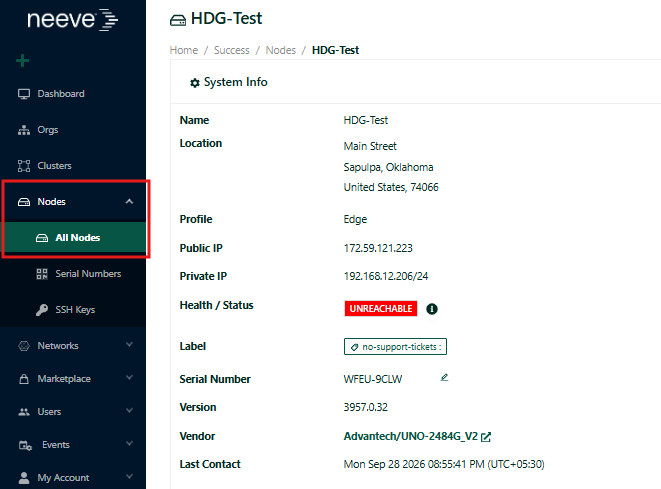
- Confirm that the Node is powered on.
- Ensure all network cables are securely connected to the correct ports - i.e (Model 2484 WAN Port - B )
- Verify that the northbound connection is connected to the WAN port as required.
- Check the device's status LEDs for power and network link indicators. ( Green )
- Ensure the Node is connected to a functional WAN network with internet access.
- Verify the IP address, subnet mask, default gateway, and DNS configuration.
- If permitted, connect a laptop to the same network to check internet connectivity.
- Use tools such as
pingandtracertto identify potential connectivity via Laptop through management port
Set a static IP address on your laptop's Ethernet adapter:
Parameter Configuration Value IP Address 192.168.192.10Subnet Mask 255.255.255.0(or/24)Default Gateway 192.168.192.168
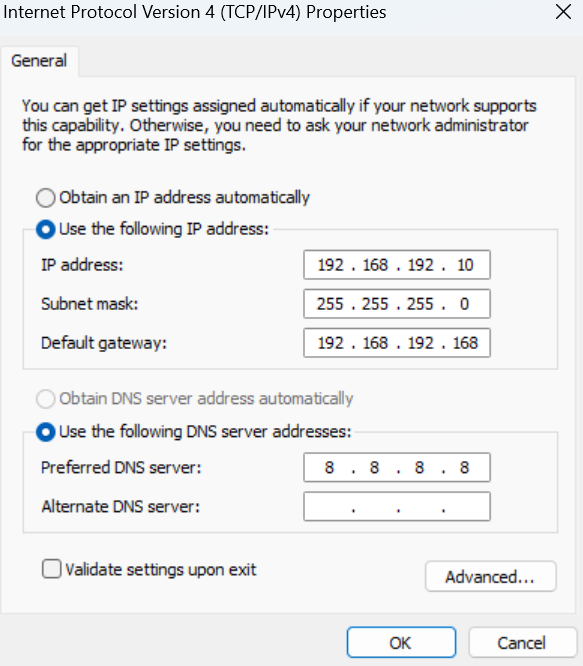
And Ping or tracert to Node WAN IP or TAN IP .
If the physical connections and network appear normal, Perform an approved power restart. Allow a few minutes for the Node to reconnect, then check its status in Secure Edge Orchestrator.
5. Run Diagnostics command on SSH:
If the Node remains offline, use the supported local console or SSH access method, where authorized.
Note : SSH access must be established using the private key file path.
Check the SSH Key Details under Node > Edit in the portal. 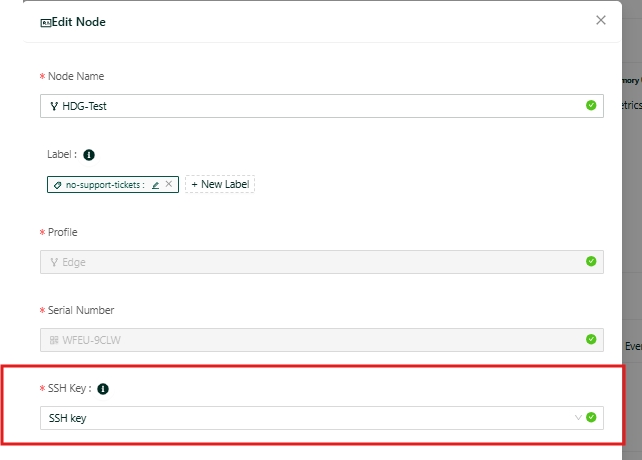
Establish SSH Session:
- Open Command Prompt or Terminal on your laptop.
- Run the following command (replace
<Private_Key>with the full file path with SSH Key file name):
Command:
ssh -i <Private_Key> iotium@192.168.192.168 Run the documented diagnostic command, if login:
diag --all orchestrator-connection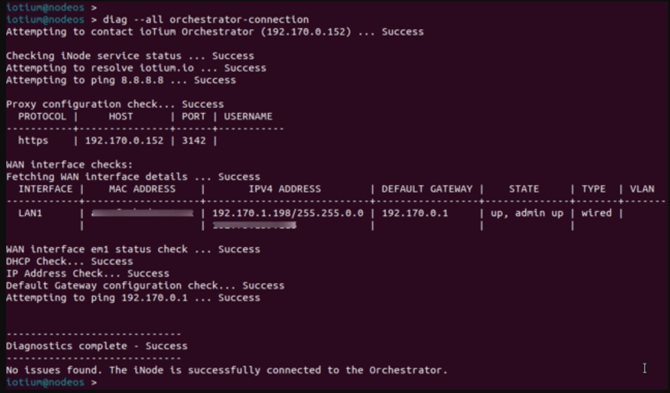
Review the output for:
- Verify the connectivity to resolve - Iotium.io
- Verify the Ping 8.8.8.8
- Verify Proxy Configuration check
- Verify the Protocol status to ensure the require ports are Open ( i.e. https,http)
- verify the default Gateway state and it configuration check.
- Verify the DHCP & DNS check.
- Verify WAN inerface em1 status check.
- verify node Service status
Ask your network administrator to verify that the required outbound domains, ports, and protocols are allowed. Confirm the requirements against the current deployment documentation.
- Check if Iotium.io : is whitelisted. Ensure that any necessary firewall or security configurations are in place to allow communication with orchestrator)
- Ensure required ports are open (commonly used: 443, 123 etc.).
- If a proxy server is used, confirm the node is configured to use it correctly.
7. Validate IP Configuration : ( Static IP )
- Ensure the node is assigned a valid IP address, either via DHCP or static IP configuration.
- Check for IP conflicts or subnet misalignment.
8. Certification Validate :
- Check whether the Cert of the Node is valid.
Note : If the Node remains offline after these checks, contact Neeve Support for further Process and TS.