![Neeve-Logo-Lockup-SM_rectangle_reverse .png]](https://support.neeve.ai/hs-fs/hubfs/Neeve-Logo-Lockup-SM_rectangle_reverse%20.png?height=40&name=Neeve-Logo-Lockup-SM_rectangle_reverse%20.png)
1. Prerequisites
-
Verify the host license includes DR-JSON or DR-S-JSON.
-
Production licenses require an active Software Maintenance Agreement (SMA).
-
Engineering/Demo licenses should include the feature by default.
-
Install the HTTP Client Driver module.
SMA monitoring: The JsonSchemaService checks the SMA status every 24 hours and generates an alarm when the warning period is reached or the SMA has expired.
2. Configure JsonSchemaService
-
1. Open the Niagara station and go to the Services.
-
2. Add JsonSchemaService to the Services from palette.
-
3. Use the service for station-level filtering and to restrict user access for inbound messages.
MQTT note: If MQTT is used as the transport, an intermediary broker may be used to proxy messages to the remote broker.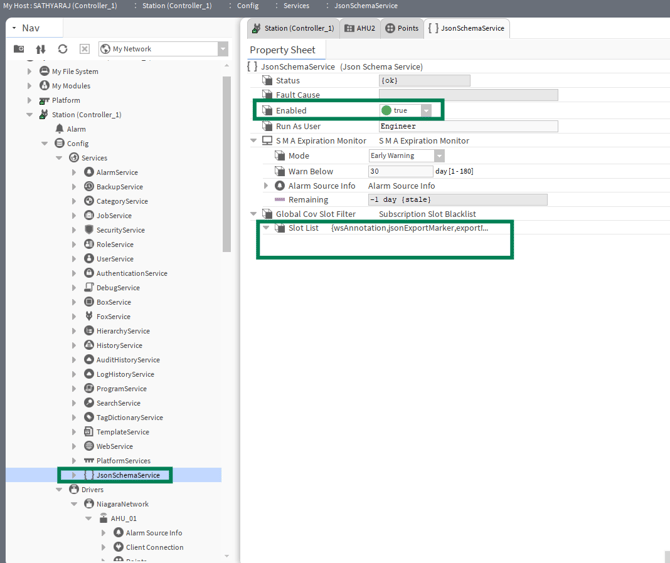
3. Create a JSON Schema
-
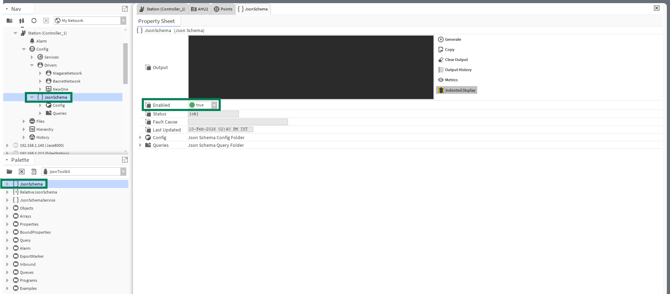
From the palette, drag JsonSchema into the station Config folder.
-
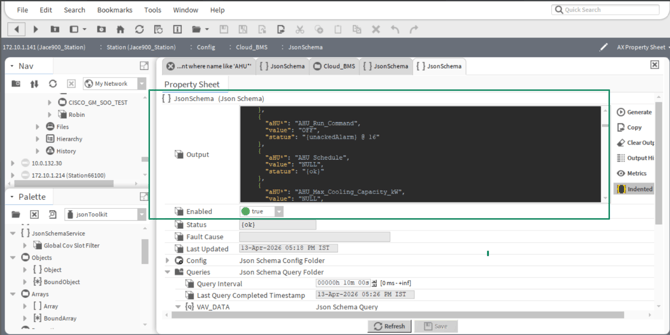
Open the JsonSchema component to configure its properties.
-
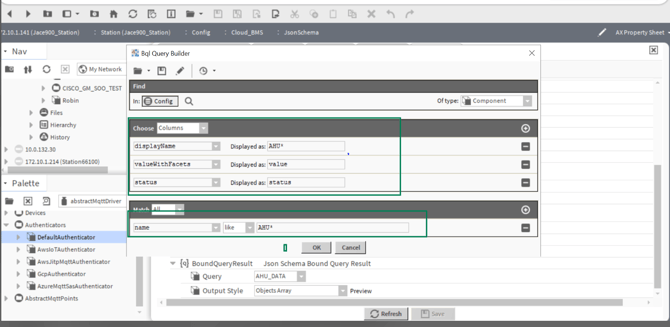
Define the required output, configuration/query properties, JSON entities, and actions.
4. Add JSON Objects and Properties
-
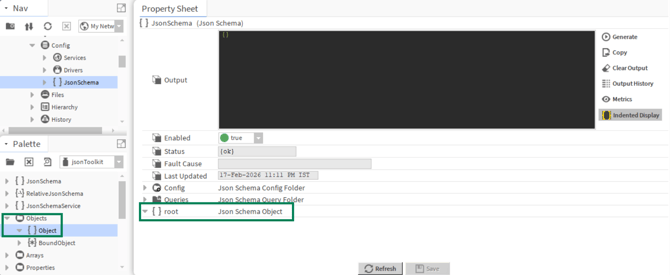
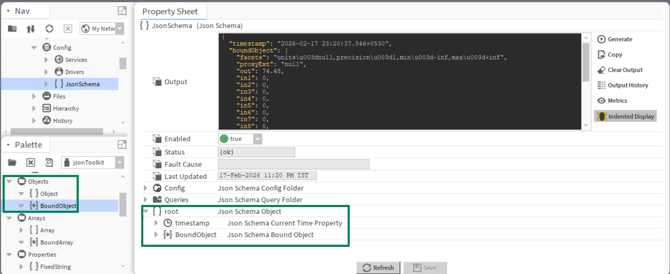
From the Objects folder in the palette, drag an Object into the JsonSchema.
-
Add additional Objects under the root Object as required.
-
From the Properties folder, drag CurrentTime to the root Object or an Array.
Double-click CurrentTime to configure it.
-
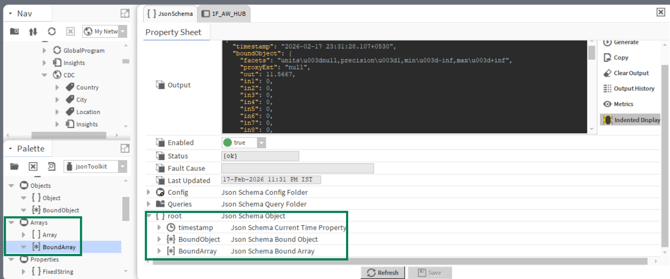
From the Arrays folder in the palette, drag an Array into the required JSON Schema Object.
-
Add the required properties/components to the Array.
-
Example components: The jsonToolkit palette includes JsonExampleComponents and Schemas that can be dragged into a running station for reference.
6. Access JSON Output
-
The configured JSON output can be exposed through a web servlet and retrieved using an HTTP GET request.
-
JSON allows the output format to be defined without the fixed oBIX format.
-
MQTT can be used to link JSON Schema output to a cloud platform.
7. Verification
-
Confirm JsonSchemaService is running.
-
Confirm the JsonSchema is present under Config.
-
Verify the required Objects, Arrays, and Properties are configured.
-
Test the JSON output using the JsonExporter/web servlet.