![Neeve-Logo-Lockup-SM_rectangle_reverse .png]](https://support.neeve.ai/hs-fs/hubfs/Neeve-Logo-Lockup-SM_rectangle_reverse%20.png?height=40&name=Neeve-Logo-Lockup-SM_rectangle_reverse%20.png)
1. PREREQUISITES & REQUIRED TOOLS
- Laptop with an RJ45 Ethernet port (or USB-to-Ethernet adapter).
- CAT5e/6 LAN cable.
- Terminal application (Command Prompt, PowerShell, or Terminal).
- Designated SSH Private Key file (
.pemformat).
2. PROCEDURE
Step 1: Physical Connection
- Power on the iNode device.
- Connect one end of the Ethernet cable directly into the Management/LAN port of the iNode.
- Connect the other end directly into your laptop.
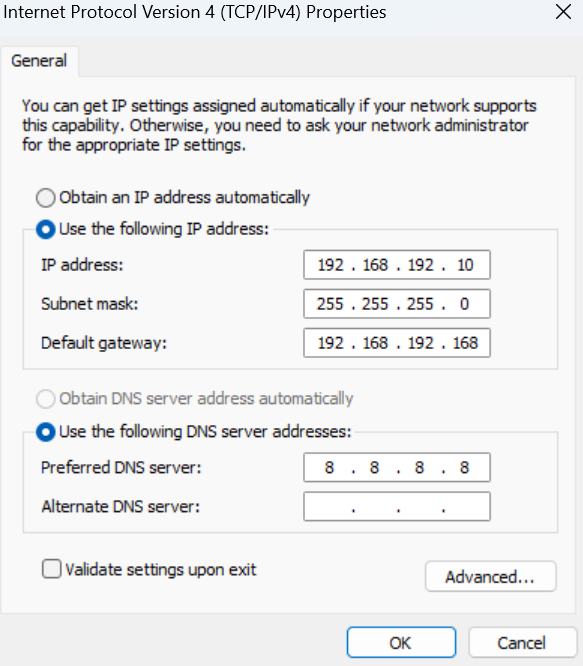
Step 2: Configure Laptop Network Interface
Set a static IP address on your laptop's Ethernet adapter:| Parameter | Configuration Value |
| IP Address | 192.168.192.10 |
| Subnet Mask | 255.255.255.0 (or /24) |
| Default Gateway | 192.168.192.168 |
Step 3: Establish SSH Session
- Open Command Prompt or Terminal on your laptop.
- Run the following command (replace
<Private_Key>with the full file path with SSH Key file name):
ssh -i <Private_Key> iotium@192.168.192.168 Step 4: Execute Diagnostic Commands
Once authenticated and connected to the iNode CLI prompt, execute:
Command:
show interface wwan --verbose 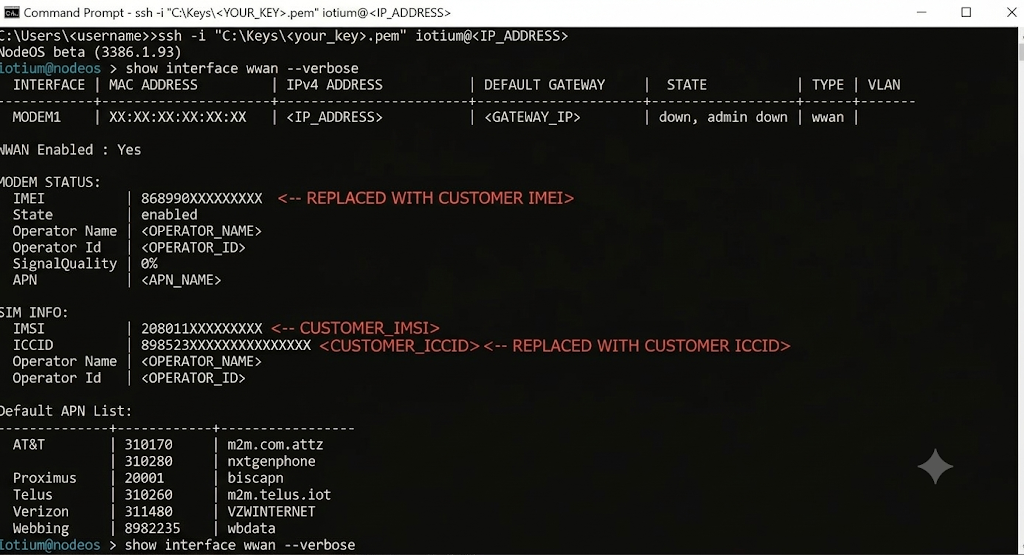
Step 5: Data Capture & Verification
- Capture a clear, full-window screenshot of the CLI screen displaying the output.
- Ensure the screenshot includes the entire response, including Interface State, Signal Quality, and APN Settings.
- Save the captured screenshot and send it to the Neeve Support team for investigation.