![Neeve-Logo-Lockup-SM_rectangle_reverse .png]](https://support.neeve.ai/hs-fs/hubfs/Neeve-Logo-Lockup-SM_rectangle_reverse%20.png?height=40&name=Neeve-Logo-Lockup-SM_rectangle_reverse%20.png)
- Administrator access to the Secure Edge Portal.
- Target network CIDRs and traffic flow directions ready for input.
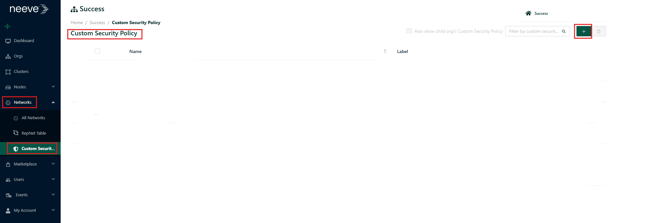
1.Navigate to Custom Security Policies:
In the Secure Edge Portal, go to the left navigation menu and select Networks > Custom Security Policy.
2.Create a New Policy:
Click the plus sign (+) in the top-right corner.
4. Enter a clear, descriptive name for the policy and add any relevant labels.
5. Add Policy Rules:
In the Rules table, click + Add Rule and configure the following parameters:
-
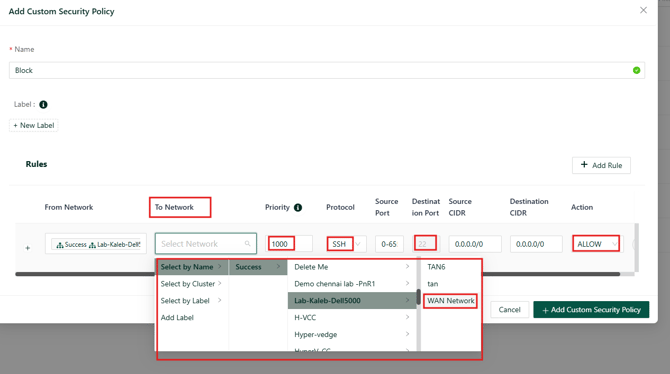
From / To Network: Select your local network by name. Expand the row entry (using the + icon) to specify the traffic direction.
-
Priority: Assign a value between
1000and10000.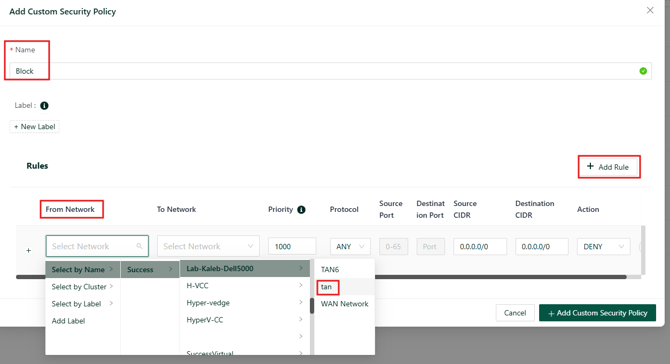
-
Protocol: Select ICMP (or TCP for SSH on port 22).
-
Source / Destination Port: Set to Any for ICMP (or 22 for SSH).
-
Source / Destination CIDR: Specify the required IP ranges.
-
Action: Set to Allow.
4.Save and Verify:
Click + Add Custom Security Policy to save your changes. Verify that your new policy appears on the Custom Security Policy management screen.
Verification: To confirm successful setup, perform a ping or SSH test from the source CIDR to the target northbound interface and ensure traffic is allowed without being dropped.