![Neeve-Logo-Lockup-SM_rectangle_reverse .png]](https://support.neeve.ai/hs-fs/hubfs/Neeve-Logo-Lockup-SM_rectangle_reverse%20.png?height=40&name=Neeve-Logo-Lockup-SM_rectangle_reverse%20.png)
What is a tech dump?
Tech Dump comprises logs downloaded from Node via the orchestrator.
Note: Please include the cautionary statement that during instances of very high memory or CPU usage, if it crosses 95%, triggering a tech-dump might bring down the iNode and make it unreachable
Diagnostic Data Level
Choose the level of iNode diagnostic data to collect and send:
| Type of Tech Dump | Description |
| Basic | Minimum set of logs and data required to troubleshoot issues. |
| Enhanced | Basic diagnostic data plus more detailed logs and data that may also help troubleshoot issues. |
| System: | Includes device and operating system level information. |
| Commands | Includes network, filesystem, container, and certificate information collected by executing a set of commands. |
| Full | Includes all of the above diagnostic data. |
How to download Tech Dump from Orchestrator
- Log in to Secure Edge.
- Select the correct Customer name.
- Click "ALL Node."
- Choose the specific Node to download the Tech dump.
Select the desired Diagnostic Data Level from the dropdown menu.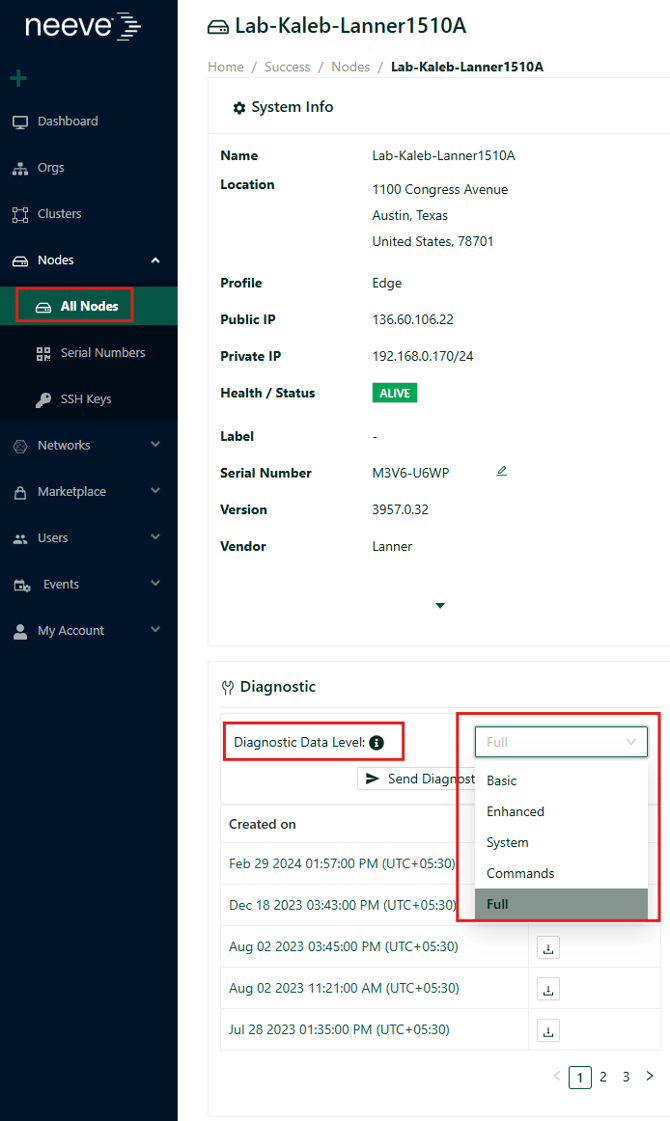
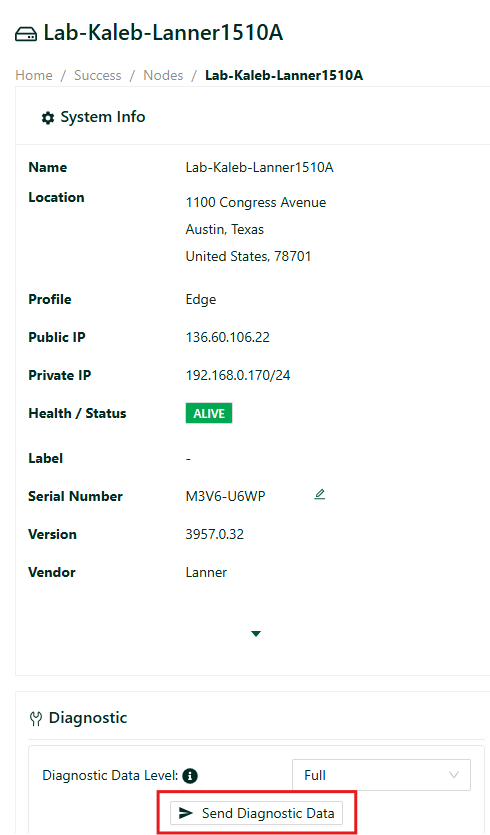
- Click "Send Diagnostic Data."
- Click "Yes - Send Diagnostic Data."
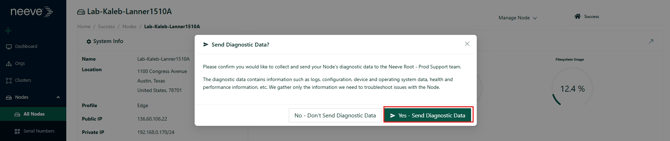
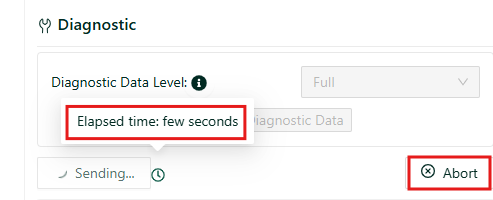
- Wait for a few minutes for the Tech dump to be generated. Also, if needed abort generating diagnostic data by clicking abort.
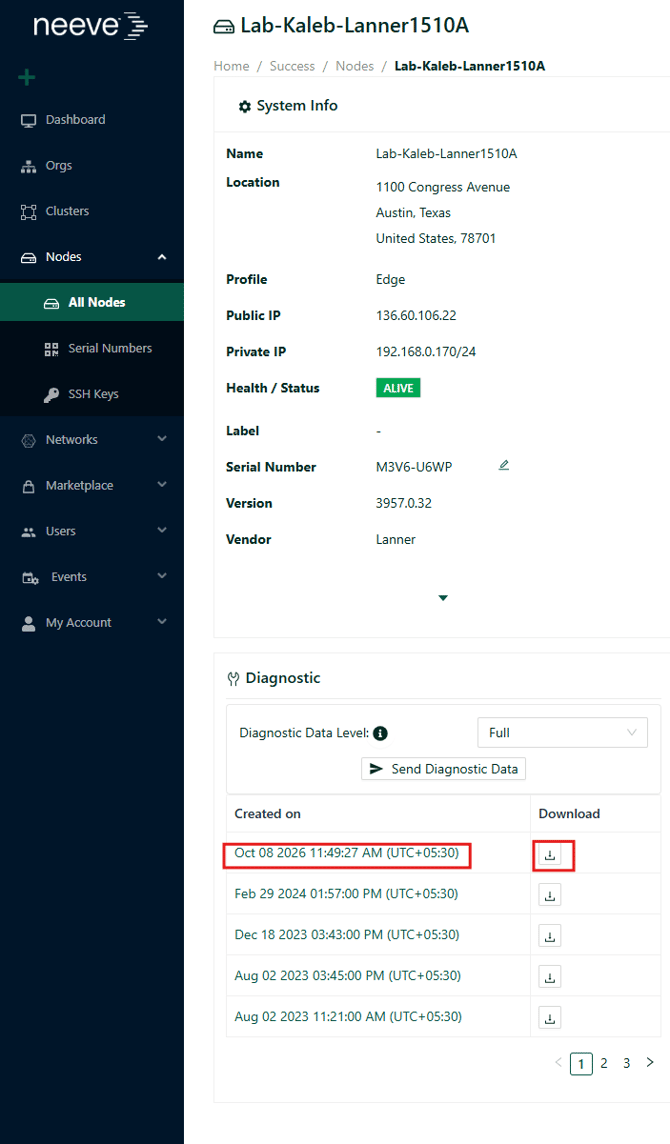
- Locate the Tech dump created on today's date.
- Click "Download" to download the Tech dump.