![Neeve-Logo-Lockup-SM_rectangle_reverse .png]](https://support.neeve.ai/hs-fs/hubfs/Neeve-Logo-Lockup-SM_rectangle_reverse%20.png?height=40&name=Neeve-Logo-Lockup-SM_rectangle_reverse%20.png)
Follow the methods below to test and verify WAN latency and speed.
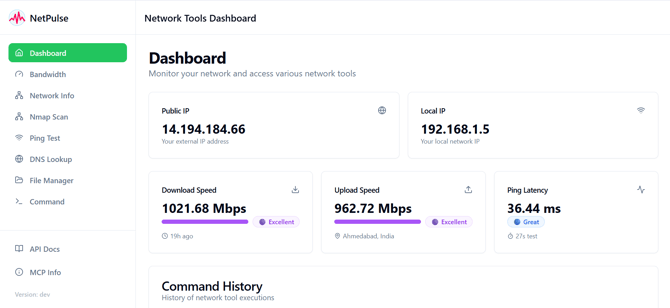
Method 1: Check Internet Speed via Netpulse Service (Remote Method)If the node is online and reachable through the portal, you can deploy the Netpulse diagnostic service directly onto the node to test speed and latency remotely.
Step 1: Deploy Netpulse in the Secure Edge Portal
Link: https://support.neeve.ai/how-to-deploy-the-netpulse-
- Log in to the Secure Edge Portal.
- Go to Nodes on the left menu and select the target node.
- Navigate to the Services tab within the node view and click Add Service (
+). - Select Netpulse from the service catalog.
- Provide a name for the service, select the target Network/VLAN (segment), and click Submit.
- Once deployed, verify that the status displays HEALTHY / Running and copy the assigned Service IP Address.
Step 2: Onboard Netpulse in the Neeve Portal
- Log in to the Neeve Portal.
- Navigate to Endpoints/Devices $\rightarrow$ Add Endpoint/Device.
- Enter the Netpulse Service IP address retrieved from the Secure Edge Portal.
- Set the protocol to HTTP and port to 8000, then submit.
Step 3: Run the Latency and Speed Test
- Access the registered Netpulse endpoint through the portal.
- Initiate the built-in speed test to check Latency (Ping), Upload Speed, and Download Speed.
Method 2: Direct Laptop Testing (On-Site Method)
If the node is offline, unreachable, or you need to isolate physical connection issues, test the WAN cable directly with a technician’s laptop.
Steps:
- Unplug the WAN Ethernet uplink cable from the Node's WAN port.
- Plug the WAN cable directly into the Ethernet port of your laptop (use a USB-to-Ethernet adapter if necessary).
- Open a browser and run a speed test using a tool like Speedtest.net or
- Note down the Ping/Latency (ms), Upload, and Download speeds.
| Test Finding | Cause | Action |
| High Latency / High Ping | ISP link degradation or WAN network congestion | Contact the WAN/Network Management Team or ISP responsible for the site network. |
| Low Speeds / Packet Loss | Cable defect, improper WAN configuration, or bandwidth throttling | Request WAN network team to audit link quality. |
| Normal Speed & Low Latency | WAN is healthy; issue is local to the Node hardware or software | Proceed with node reboot, software logs review, or hardware replacement. |
Note: The Edge Node requires a stable WAN link to function properly. Re-connect the cable to the node's WAN port only after the network team confirms the link issue is resolved.