![Neeve-Logo-Lockup-SM_rectangle_reverse .png]](https://support.neeve.ai/hs-fs/hubfs/Neeve-Logo-Lockup-SM_rectangle_reverse%20.png?height=40&name=Neeve-Logo-Lockup-SM_rectangle_reverse%20.png)
Prerequisites
- Administrative access to the Neeve SE Portal.
- The Destination Network CIDR (the target network subnet).
- The local Gateway IP Address handling the routed traffic.
-
Log in to the Neeve SE Portal.
-
Go to Org > Nodes from the main menu.
-
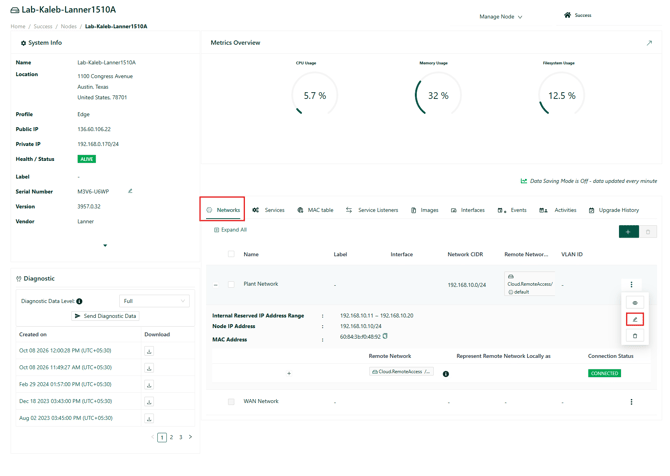
Select the target Edge Node where the route needs to be configured.
-
Access the target TAN Network and click Edit.
-
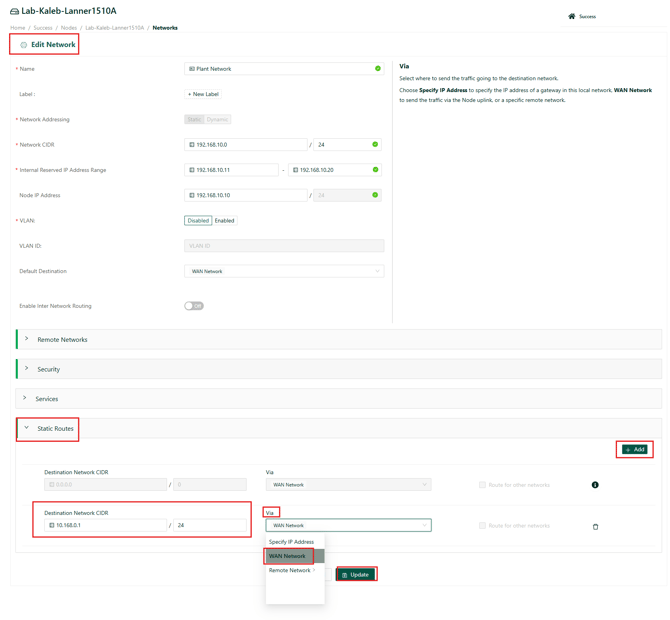
Scroll down to the Static Routes section.
Click the plus icon (+ Add) and enter your route parameters:
-
Destination Network CIDR: Enter the target subnet you want to reach (e.g.,
10.X.X.0/24). -
Via: Select WAN Address or Select the specific IP.
-
Click Update to apply the settings.
-
Wait a few moments for the new routing configuration to synchronize to the Edge Node.