![Neeve-Logo-Lockup-SM_rectangle_reverse .png]](https://support.neeve.ai/hs-fs/hubfs/Neeve-Logo-Lockup-SM_rectangle_reverse%20.png?height=40&name=Neeve-Logo-Lockup-SM_rectangle_reverse%20.png)
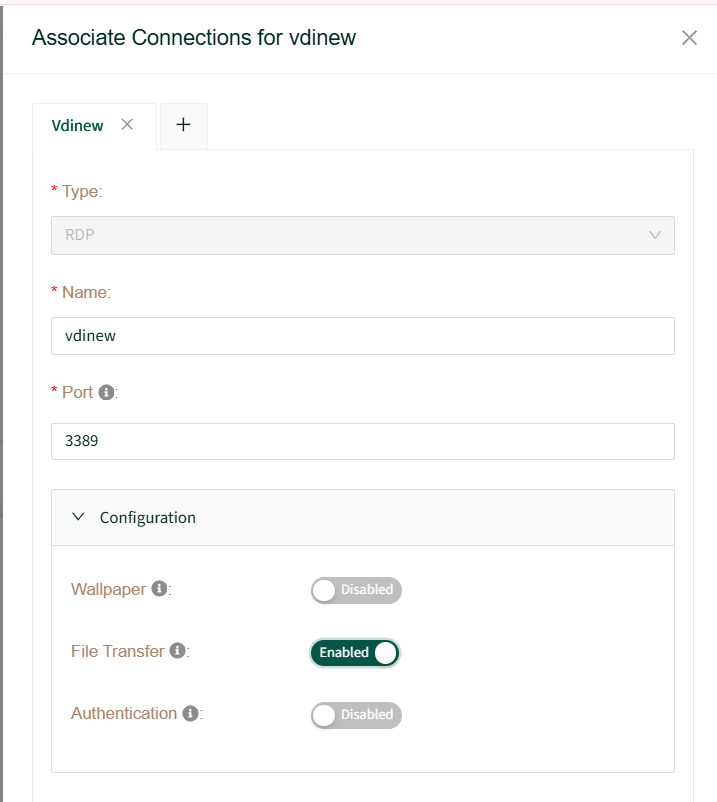
Prerequisite: Ensure the File Transfer toggle is enabled on the RDP device in Neeve remote access portal before proceeding.
Downloading Files (RDP to Local PC)
- Log in to the RDP machine via the Remote Access portal.
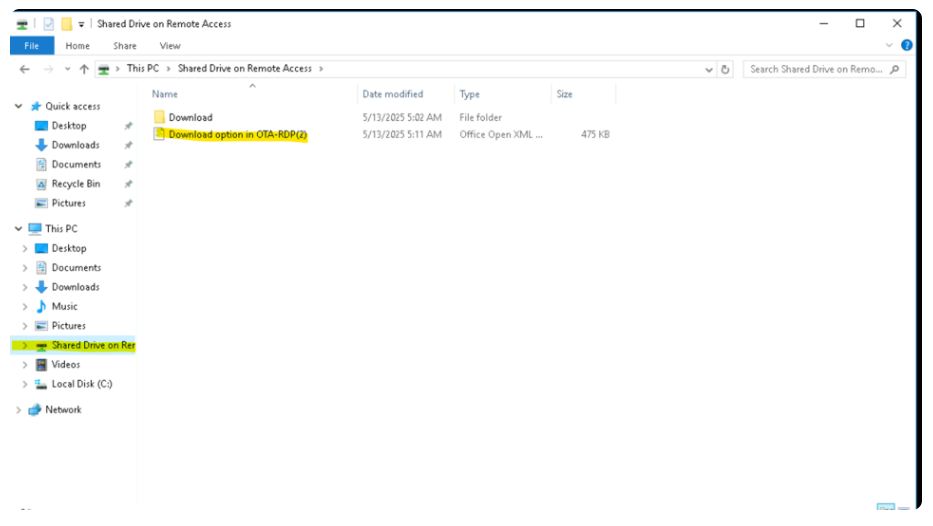
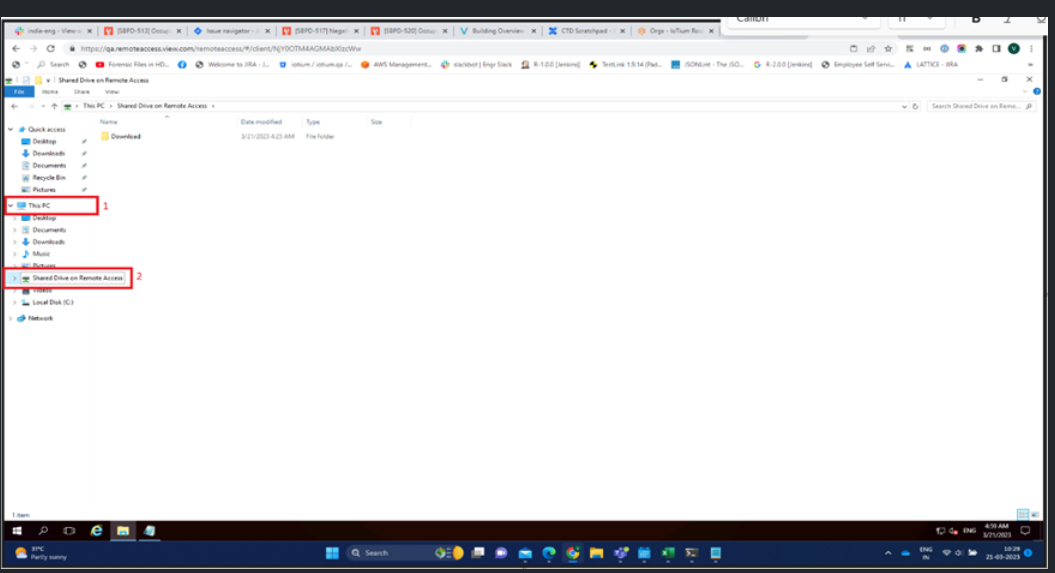
- Navigate to This PC > Shared Drive on Remote Access.
- Copy and paste your files into the Download folder to automatically download them to your local PC.
Alternate Download Method
(Use this if you copied files outside the "Download" folder)
- Log in to the RDP machine from the Remote Access portal.
- Navigate to This PC > Shared Drive on Remote Access.
- Copy and paste the files you want to download into the main Shared Drive on Remote Access folder.
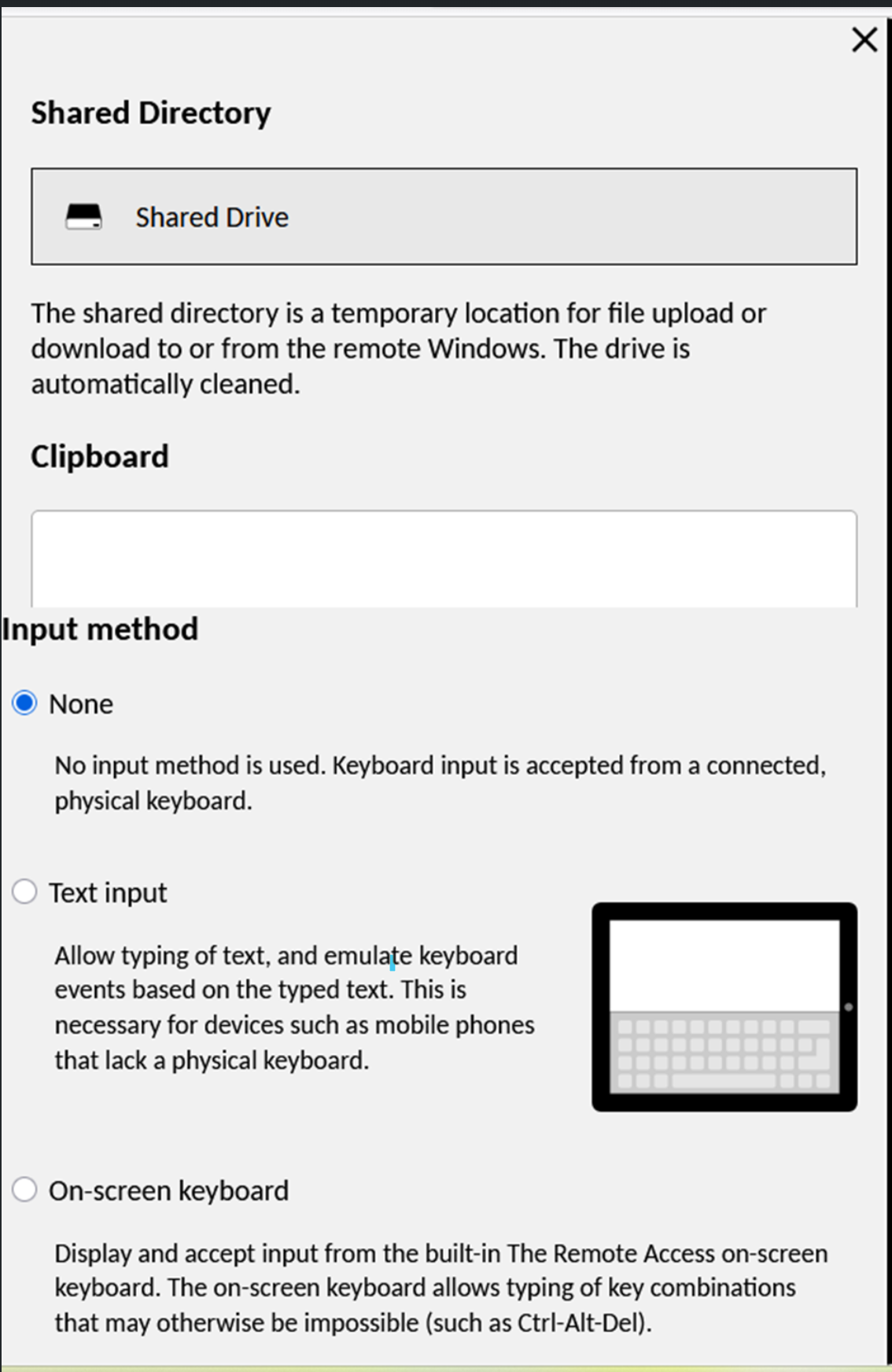
- On the RDP machine, press Ctrl + Alt + Shift to open the Shared Directory popup.
- Click on Shared Drive.
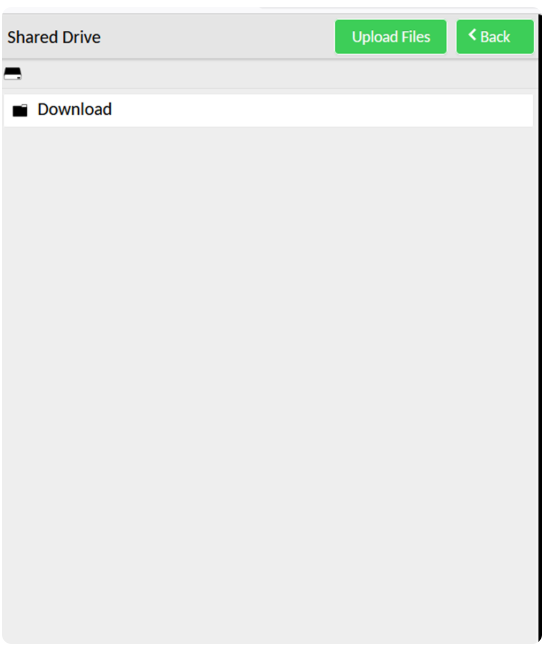
- You will see the files you just pasted. Double-click the files or folders to download them to your local PC
Uploading Files from Local PC to RDP Device
- Log in to the RDP machine from the Remote Access portal.
- Press Ctrl + Alt + Shift to open the Shared Directory popup.
- Click on Shared Drive.
- Click on Upload File to select and transfer files from your local laptop to the remote machine.
- The uploaded files will now be available in the shared drive on the RDP machine