![Neeve-Logo-Lockup-SM_rectangle_reverse .png]](https://support.neeve.ai/hs-fs/hubfs/Neeve-Logo-Lockup-SM_rectangle_reverse%20.png?height=40&name=Neeve-Logo-Lockup-SM_rectangle_reverse%20.png)
Prerequisites:
- Account Access: Valid credentials for the SecureEdge Portal with Admin permissions.
- Network Planning: An available LAN port on the Node 2484 designated for WAN assignment.
Step-by-Step Instructions:
1.Log in to the SecureEdge Portal:
Open your web browser, navigate to the SecureEdge Portal, and log in using an account with Admin privileges.
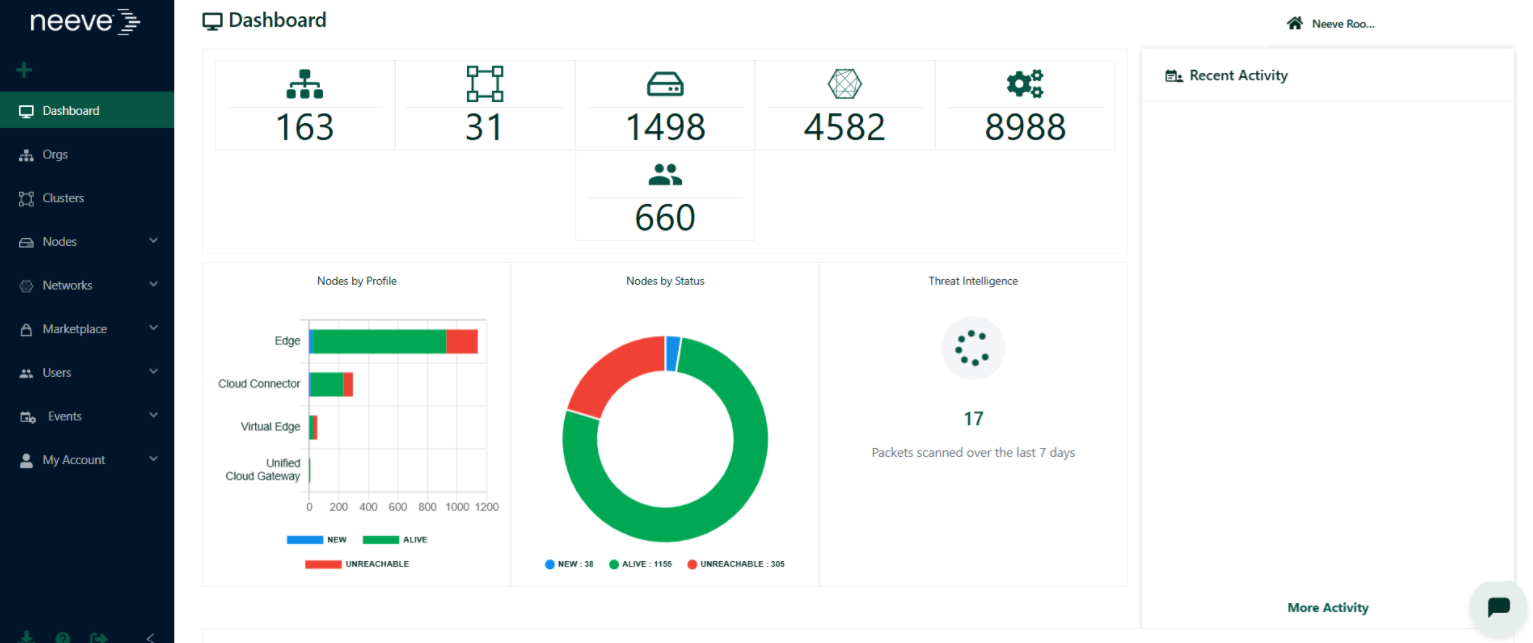
2. Navigate to the Node:
- From the main dashboard, click Neeve Root (top right) and enter your Org name.
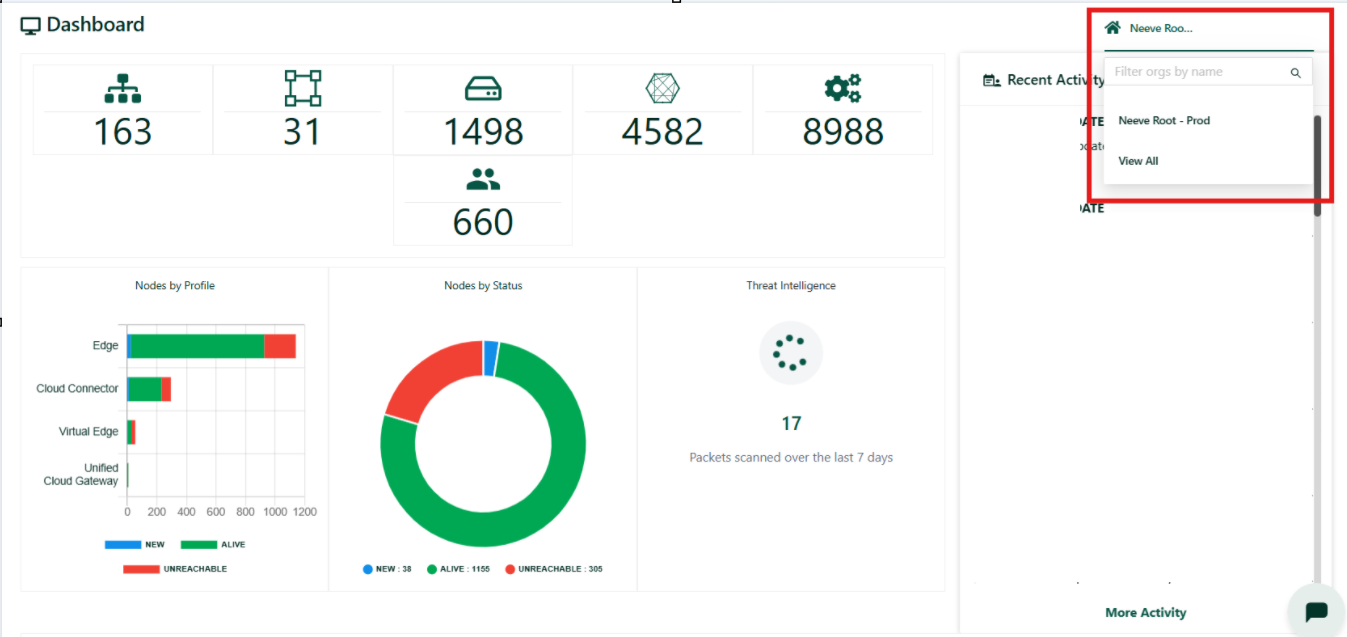
- From the Organization dashboard, click the Nodes icon (the box icon displaying the total count of nodes, e.g., 32).
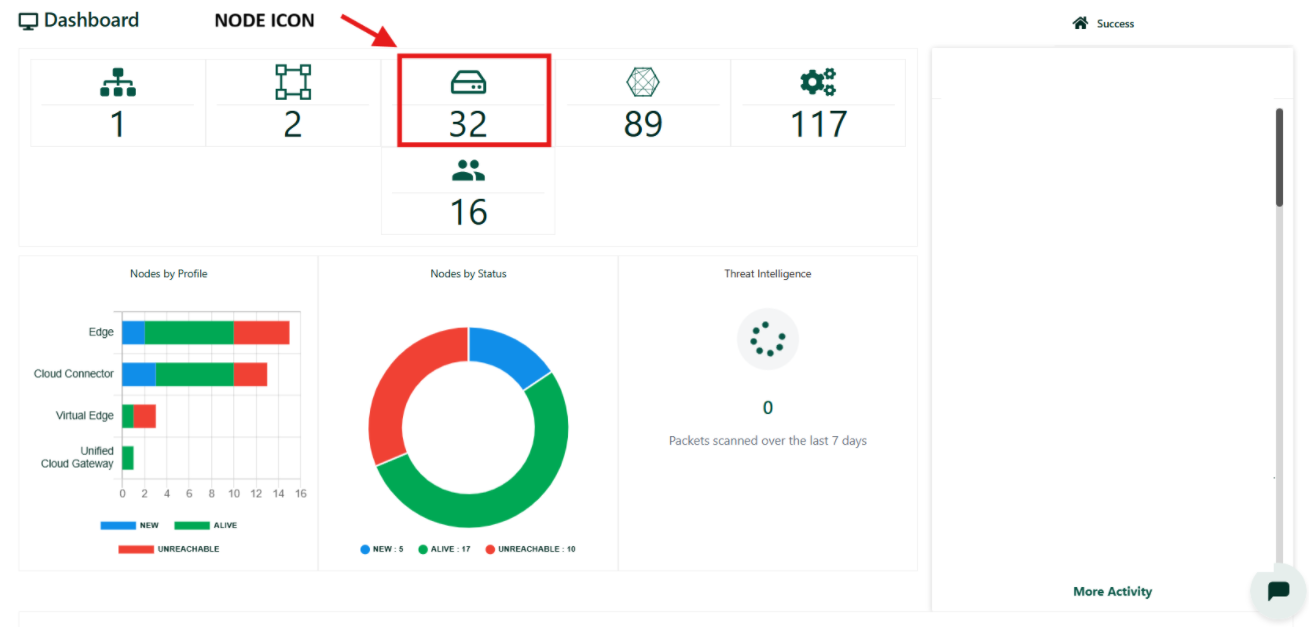
- On the Nodes page, set the dropdown filter to Filter Nodes by name, enter the target node name (e.g.,
Node 2484) into the search bar, and select it.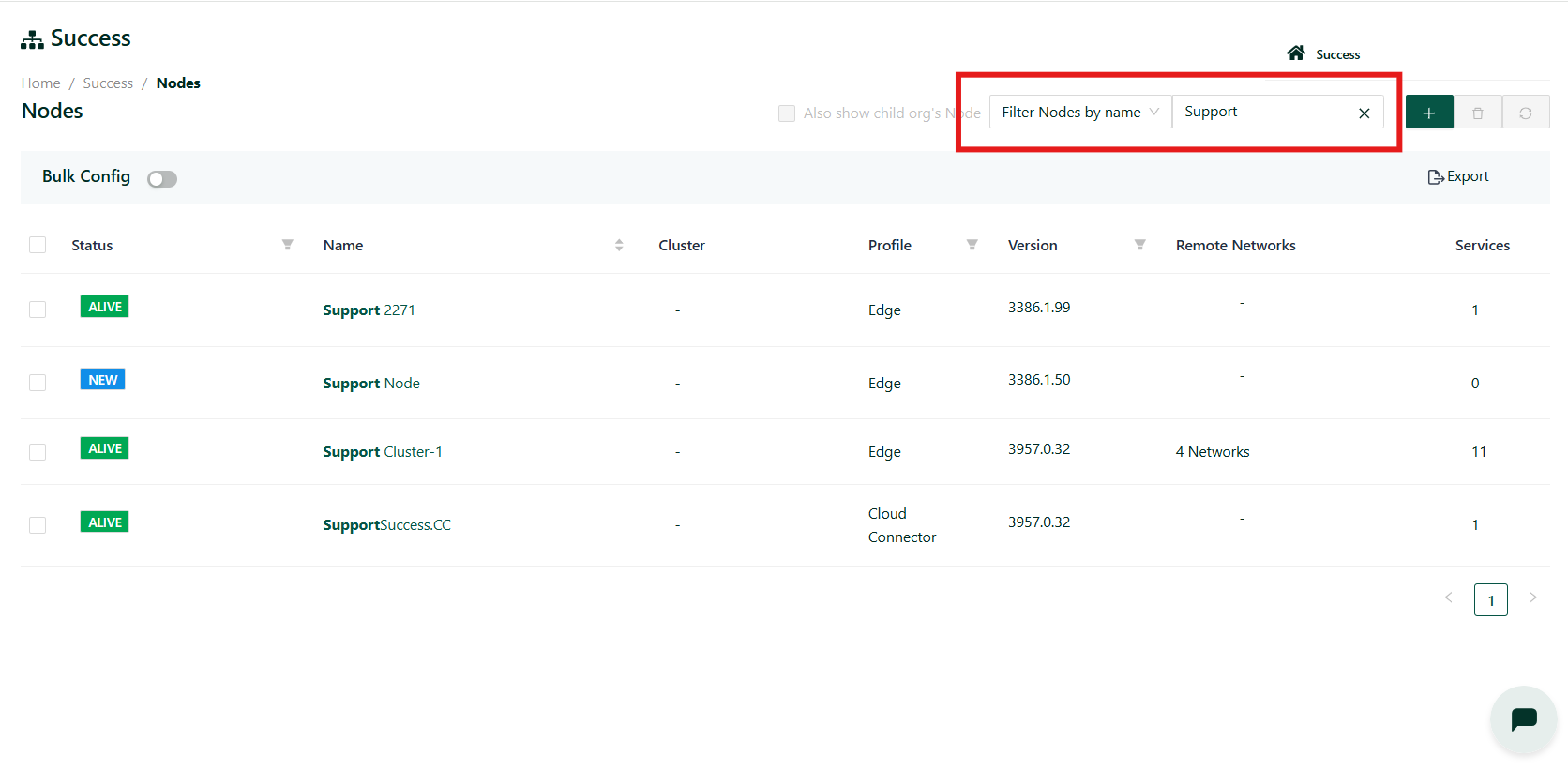
3.Access Interfaces Configuration:
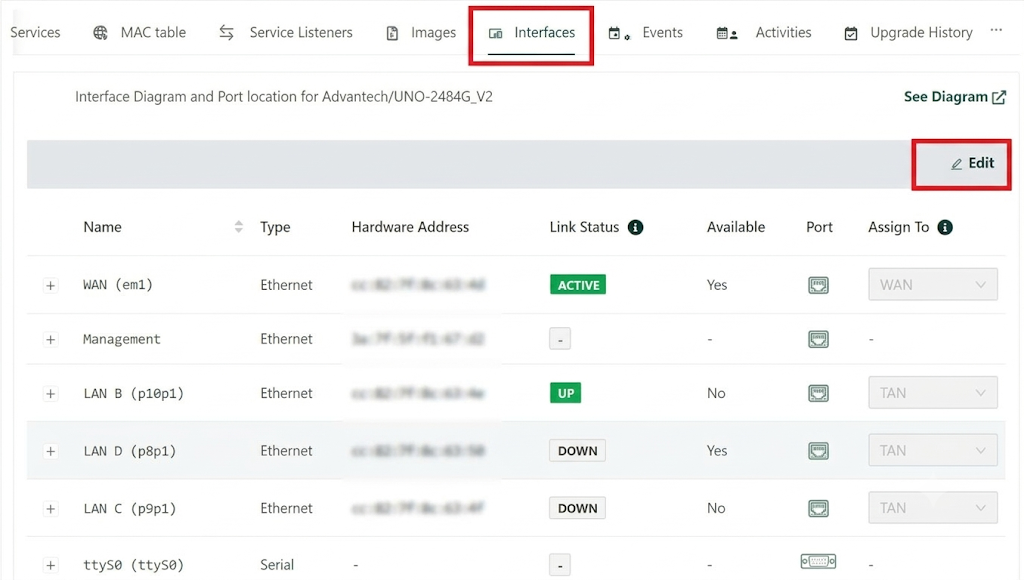
In the site navigation menu, select the Interfaces tab to display all current port and network configurations.
4.Enable Edit Mode:
Click the Edit icon located in the top-right corner of the Interfaces tab to enable editing of port assignments.
5.Assign Port to WAN:
In the interface configuration table:
-
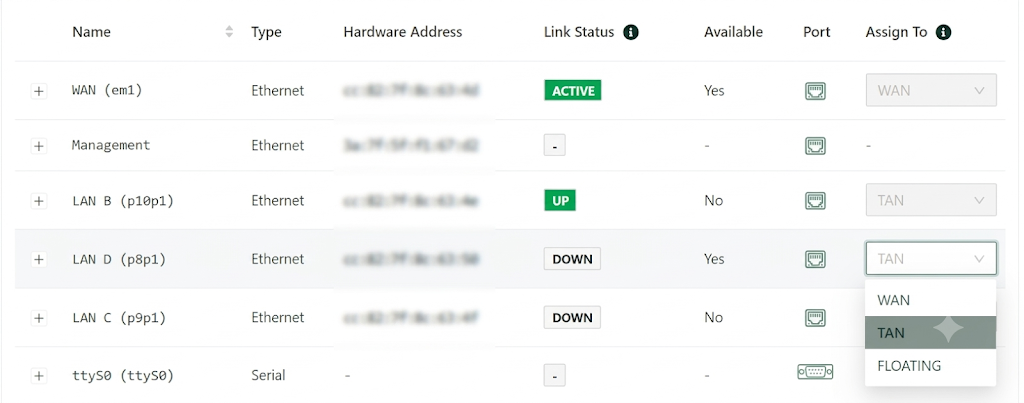
Locate the available LAN Port you wish to reconfigure.
-
Under the Assign to column, click the dropdown menu for that port.
-
Select WAN.
6.Save Changes:
Click the SAVE icon located in the top-right corner of the Interfaces tab to apply and persist the Multi-WAN configuration.
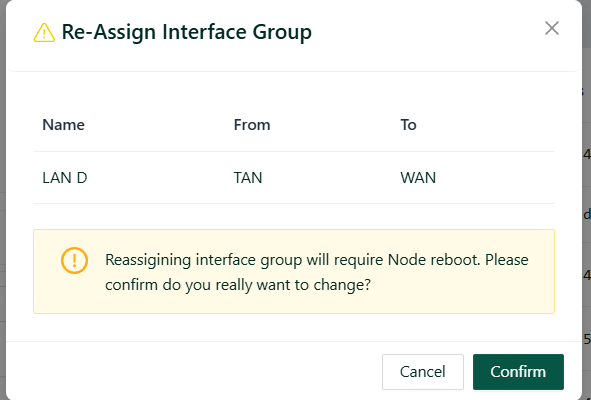
Confirm the reassignment: After clicking Save, a "Re-Assign Interface Group" confirmation prompt will appear. Review the changes (e.g., reassignment of LAN D from TAN to WAN), acknowledge the warning that this change will require a Node reboot, and click Confirm to apply the update.
Verification
- Ensure the reassigned port after reboot reflects as a WAN interface in the Interfaces list.
- Verify connectivity across the newly configured WAN connection.